Quick Answer: AI video generation is software that creates or transforms video using AI models, starting from a written prompt, a still image, or a script, rather than requiring you to film everything yourself. Some tools generate entirely new visuals; others take existing material and add voices, captions, or edits around it. The main workflows are text-to-video, image-to-video, AI avatars, and AI-assisted editing. All of them work best as a starting point you review and refine before anything goes public.
If you’ve scrolled past AI-generated videos online and wondered how they’re made, you’re not alone. Several tools now let a complete beginner turn an idea into a short video from a browser, without needing a professional studio or advanced editing experience. This guide explains what AI video generation actually is, the main workflows you’ll encounter, what beginners and small businesses commonly use it for, and how to plan a safe first project.
What Does “AI Video Generation” Actually Mean?
AI video generation covers a family of tools that use AI models to produce or transform video from an input — a written prompt, a photo, or a script — rather than only editing footage filmed with a camera. Generation-based tools predict what a scene should look like based on patterns learned during training; they aren’t “understanding” a scene the way a person would, and results can look convincing while still containing errors.
This differs from traditional video editing, which works entirely with footage you already have — trimming clips, adding titles, adjusting colour. AI video generation creates new visual material, or transforms existing material significantly, rather than just rearranging it. Many current tools blend both: generating new elements and then giving you editing controls to arrange them into a finished video.
Four AI Video Workflows Beginners Will Encounter
There are four workflows beginners are most likely to run into. The first three — text-to-video, image-to-video, and AI avatars — generate new visual or video output. The fourth, AI-assisted editing, is an adjacent workflow that improves, assembles, captions, or transforms material you already have or have already generated, rather than creating brand-new footage from nothing.
Text-to-video
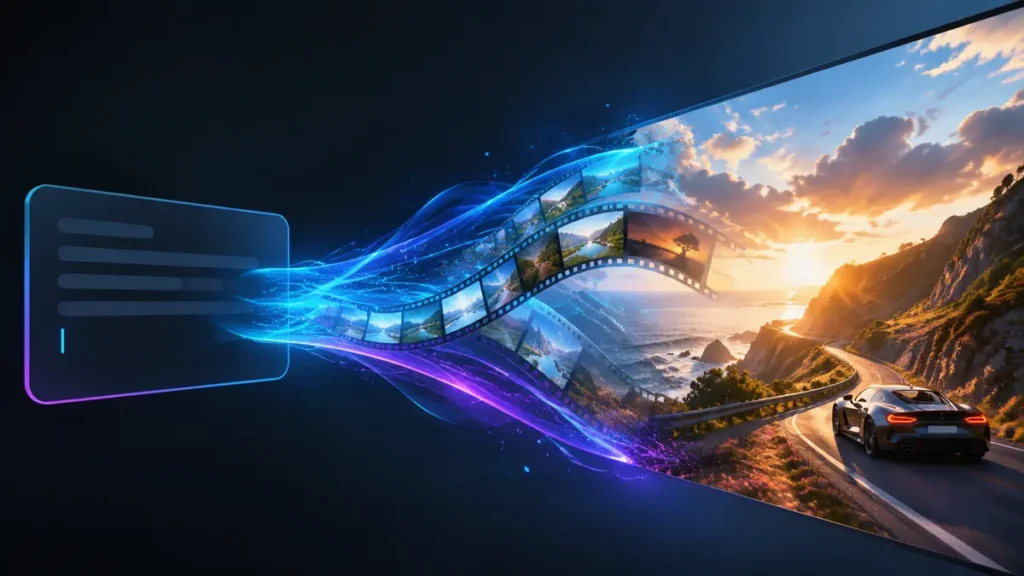
You type a written description of what you want to see, and the tool generates a short video clip based on it. There’s no starting photo or footage — just words, sometimes paired with settings like duration or style. Runway and Kling AI are both built around this: Runway’s official site describes generating video and images from text and image prompts, and Kling AI’s official site offers a dedicated video-generation tool built around text and image inputs.
Image-to-video
You upload a still photo, and the tool animates it — adding motion, camera movement, or an effect. A real photo gives these tools a concrete starting point, though results can still vary. Runway and Kling AI both support image-to-video from their official product pages, and HeyGen offers its own image-to-video tool that can add lip-synced speech to a photo.
AI avatars and presenter videos
You provide a script, and the tool generates a digital presenter who delivers it on camera, without you filming yourself. HeyGen is built around this: its official site describes an AI Video Generator and Text to Video tool where you type or paste a script, choose an avatar and voice, and the platform produces a video of that avatar speaking your words, along with a separate Image to Video tool for animating a photo with lip-synced speech.
AI-assisted editing
Instead of generating brand-new footage, these tools help assemble, caption, voice, or edit a video from a script, prompt, or existing material — combining elements like voiceover, visuals, and captions into a structured result. InVideo AI works this way: its official product page describes prompting a video idea and having the tool write a script, add AI-generated visuals, add voiceovers, subtitles, and music, with an editing interface for further changes afterwards.
| Type | Starting material | Typical result | Beginner use case |
|---|---|---|---|
| Text-to-video | Written prompt | Short generated video clip | A quick social clip with no footage on hand |
| Image-to-video | A still photo | The photo animated into motion | Bringing a product photo to life |
| AI avatars/presenters | A script | A digital presenter speaking on camera | An explainer or announcement without filming yourself |
| AI-assisted editing | A script, prompt or existing footage | An assembled video with voiceover and captions | Turning an idea or raw clip into a structured video |
For background on how AI generation works more broadly, see K44’s beginner’s guide to generative AI.
What Can Beginners and Small Businesses Create?
- A short product teaser — animating a product photo into a few seconds of motion for a social post.
- A social media clip — a short, prompt-generated video to accompany a caption or announcement.
- A simple explainer video — turning a written script into a spoken video without filming or editing it yourself.
- A presenter-style announcement — an AI avatar delivering a short update, offer, or welcome message.
How AI Video Generation Works
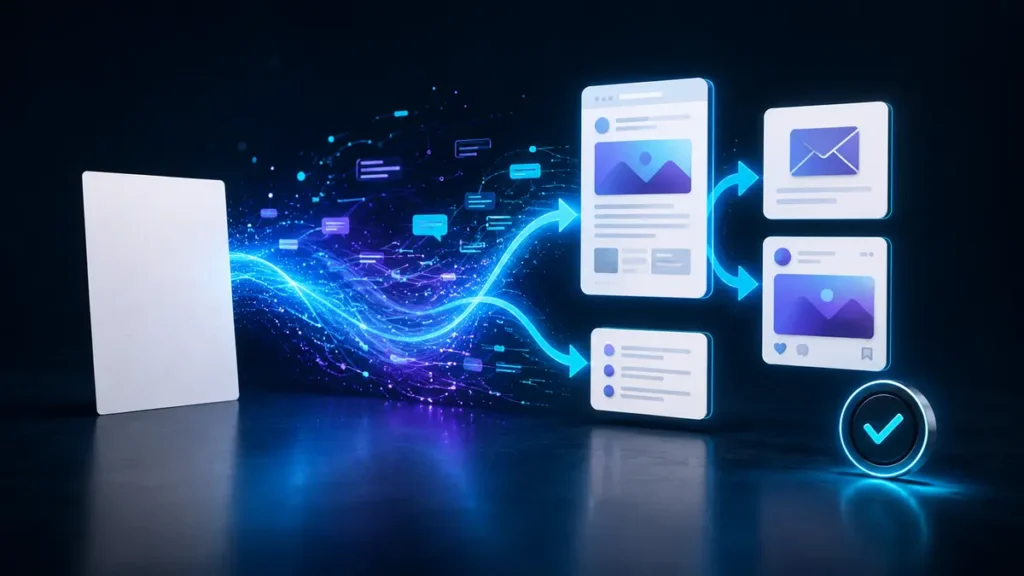
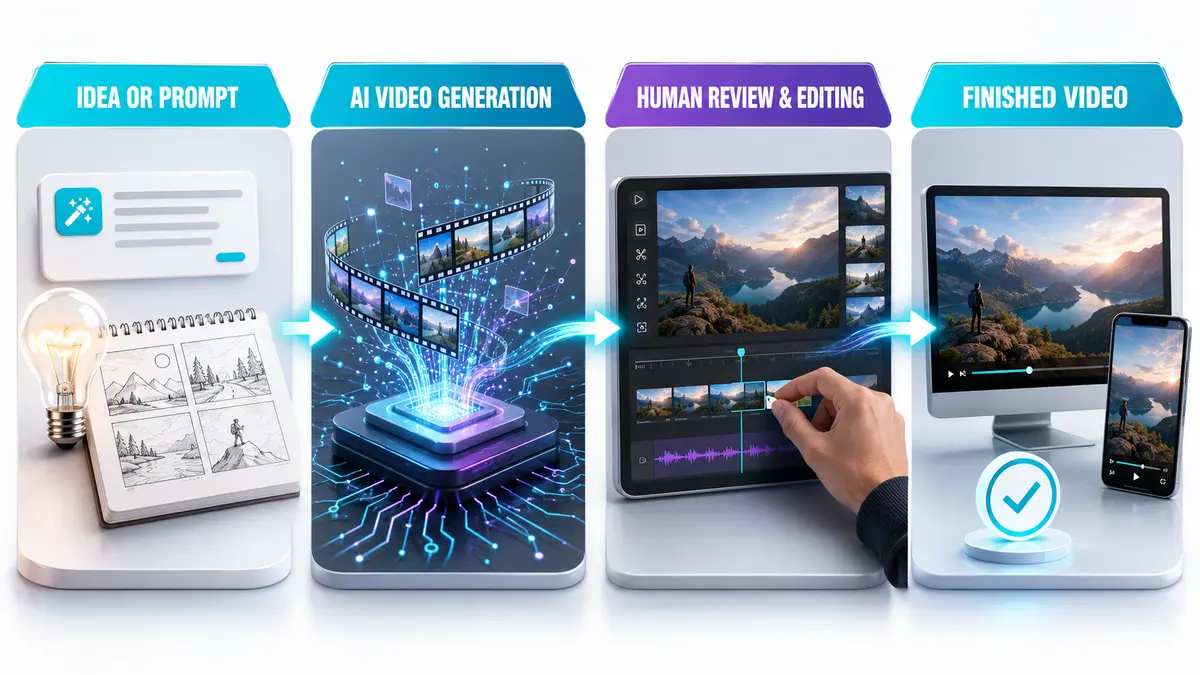
Most tools follow a similar process, whichever workflow you’re using: idea, prompt or source image, generation, review and correction, then edit, caption and export.
A human-review checklist before you export
Before treating any generated video as finished, check:
- Does it match what you actually asked for, including factual details (offer dates, prices, names)?
- Are there visual glitches — distorted hands, faces, or objects, especially partway through the clip?
- Is any on-screen or spoken text accurate, correctly spelled, and legible against the background?
- Does the pacing and tone suit where you’re planning to publish it?
- Have you checked the platform’s current terms for anything you plan to use commercially?
Accessibility considerations
Captions make a video watchable without sound, which matters since many people watch social video on mute. Most of these tools can generate captions automatically. Where you can add on-screen text, keep it large enough to read on a small phone screen, and avoid placing key information where a platform’s own interface — a share button or profile icon — might cover it.
How to Create Your First AI Video
- Decide what the video is for and who will see it (a single social post is a good starting scope).
- Choose your starting workflow — text-to-video, image-to-video, an AI avatar, or AI-assisted editing — based on what you already have.
- Write your prompt or script, following the beginner prompt structure below.
- Generate the video and watch it in full, more than once.
- Run through the human-review checklist above.
- Make any final edits, add captions if useful, and export.
The K44 video-prompt formula
Subject + Action + Camera + Environment + Style or mood + Format + Objective
Build this up in stages rather than writing it all at once:
- Beginner: Subject + Action + Camera — get the basic shot right first.
- Add control: Environment + Style — place it somewhere specific and give it a mood.
- Commercial: Format + Objective — specify the aspect ratio you need and what the video is actually for.
Completed example — a Belfast bakery promoting a weekend cupcake offer:
A tray of frosted cupcakes on a bakery counter, being lightly dusted with sugar by a pair of hands, in a slow close-up shot, inside a warm and cosy Belfast bakery, with a bright and inviting style, in vertical 9:16 format, leaving clear space near the top of the frame for weekend-offer text, with the objective of promoting a weekend cupcake offer on social media.
Generate the simple version first, check it, then layer in environment and style, and only add format and objective once you’re happy with the shot itself. Any exact wording, prices, or branded text is best checked carefully and often added separately during editing, rather than relying on generation to render text accurately.
How to Choose the Right Starting Method
- No footage or photos at all? Start with text-to-video.
- Have a product photo or image you like? Try image-to-video to bring it to life.
- Need someone to “present” your message on camera? An AI avatar tool is the more direct route.
- Already have raw footage, or want a full video assembled from a script? AI-assisted editing tools can help you structure, caption, and voice it.
Why a short, single-purpose clip is an easier first project
A single short clip with one clear job gives you less to review and less that can go wrong. Longer or multi-scene videos multiply what you need to check — more transitions, more spoken lines, more chances for a glitch to slip past you. Starting small also means you learn how a specific tool behaves before committing more time to a bigger project.
For a fuller comparison of current tools, see K44’s AI Video Generation Tools page. If your project starts with a still image rather than a prompt, K44’s AI Image Generation Tools page can help you create one first.
Limitations and Risks Beginners Should Understand
- Output quality and consistency can vary. Generated people, hands, and objects can sometimes look distorted or inconsistent, particularly in busier scenes.
- Licences, commercial permissions and restrictions vary by tool, account and plan. Check the platform’s current terms before using generated output in advertising, client work or other commercial content.
- Generated video isn’t guaranteed to be accurate or original. Treat every output as a draft, and verify anything factual before it’s used publicly.
- More complex scenes generally take more review, not necessarily worse results. A longer or busier video gives you more to check carefully — it isn’t automatically lower quality, but it is more work to verify.
Common Beginner Mistakes
- Publishing without watching the full clip — errors often appear partway through, not just at the start.
- Over-scoping the first project — trying to make a polished, multi-scene video before learning how one tool behaves.
- Assuming one tool does everything — text-to-video, avatars, and editing tools each solve a different problem.
- Ignoring the platform’s current terms — especially important before using anything in paid advertising or public content.
Key Takeaways
- AI video generation creates or transforms video from a prompt, image, or script — some workflows generate new visuals, others work with existing material.
- The four workflows beginners will encounter are text-to-video, image-to-video, AI avatars, and AI-assisted editing.
- The core process is idea → prompt or source image → generation → review and correction → edit, caption and export.
- Tools like Runway, Kling AI, HeyGen and InVideo AI each suit a different starting point; none is a universal best fit.
- Always review generated output against a checklist and check the tool’s current terms before publishing anything commercially.
Frequently Asked Questions
Is text-to-video the same as image-to-video?
No. Text-to-video starts from a written description alone. Image-to-video takes a still photo you provide and animates it, giving the tool a concrete visual starting point instead of generating a scene purely from words.
Do I need video-editing experience?
No. Many of these tools are designed to be usable without an editing background, though basic editing skills can help you refine and polish the result afterwards.
Can AI create an entire video from just a written prompt?
Yes — tools built around text-to-video and AI-assisted editing, such as InVideo AI, are designed to generate a script, visuals, voiceover, and captions from a single prompt. The result should still be reviewed and edited before it’s published.
Can AI-generated video be used commercially?
It depends on the specific tool, your account, and your plan. Always check the current terms of the specific tool directly before using generated video in paid or public-facing content.
What’s a good first task to try this week?
Something short, low-stakes, and easy to review — like a single product clip or social post — rather than a longer or more complex video with several scenes.
What makes a good first AI video project overall?
Pick one clear goal, one short clip, and one tool that matches what you already have — a photo, a script, or just an idea — then review the output carefully before publishing.
Ready to try it yourself? Explore K44’s AI Video Generation Tools page to find a tool that matches your first project.