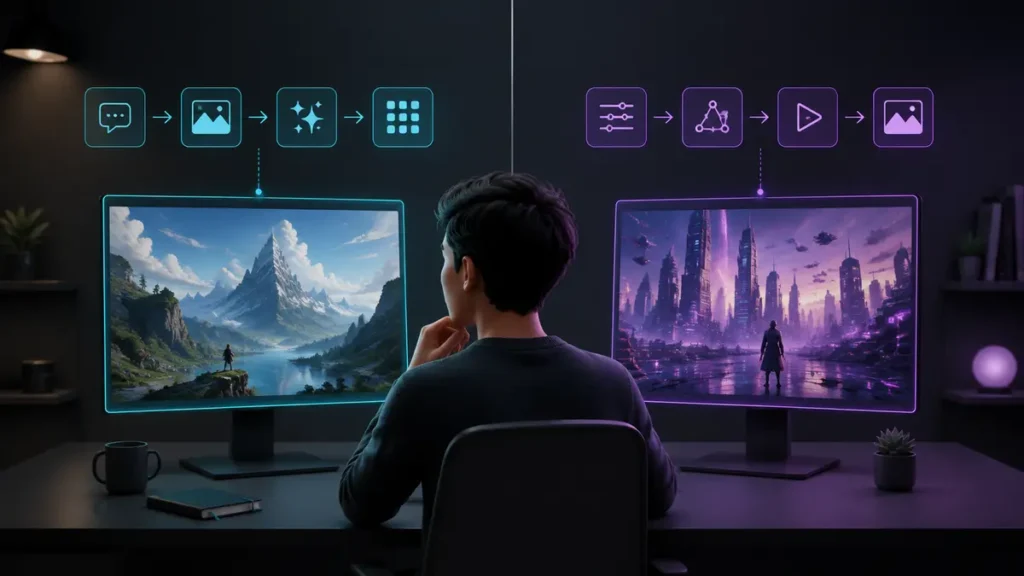
Quick Answer: Both tools are genuinely beginner-friendly because you can describe an image in ordinary language and refine it through conversation. ChatGPT Images is the slightly easier starting point when you want guided, step-by-step iteration and precise conversational edits. Google Gemini is especially appealing when you already use Google services and want fast image generation and editing inside the Gemini app. The better choice depends less on technical skill and more on which workflow feels natural to you.
AI image generation no longer requires complicated prompt formulas or specialist design software. You can now describe the visual you want, review the result and ask for changes in the same conversation. That makes both ChatGPT Images and Google Gemini realistic options for complete beginners.
The difficulty is not getting either tool to produce an image. The real challenge is deciding which one makes it easier to reach a usable result without becoming lost in features, model names or technical language.
This comparison focuses on the everyday beginner experience: creating a first image, improving it, editing an uploaded image, adding readable text and deciding what to use for simple business or content tasks. It does not attempt to declare a permanent winner—both products change quickly.
What Are We Comparing?
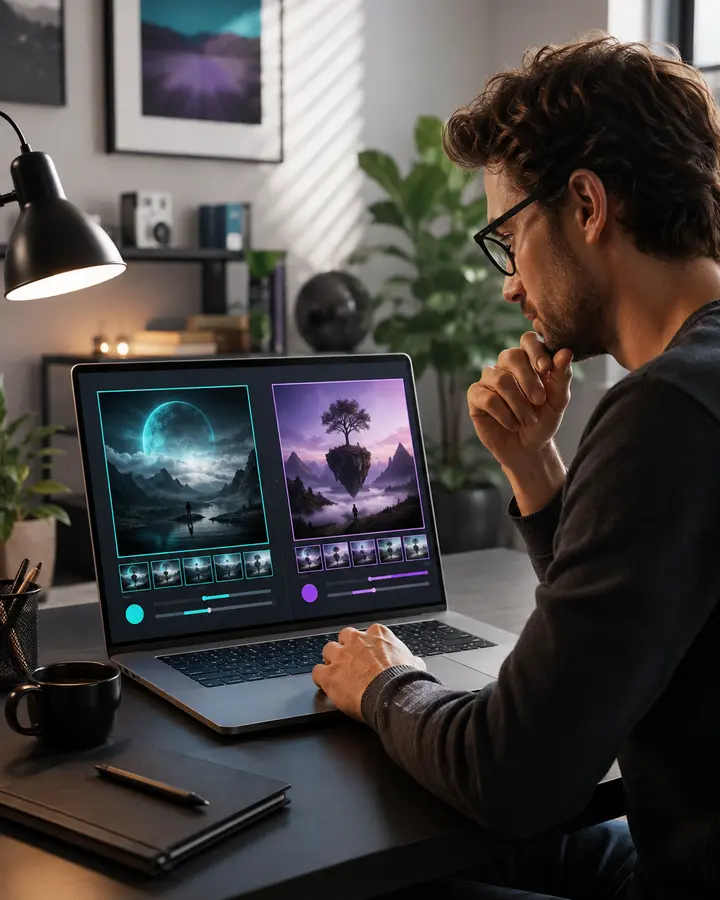
ChatGPT Images
ChatGPT Images creates new visuals and edits existing images inside a ChatGPT conversation. You can describe what you want, upload a reference, select part of an image for editing or request a broader change in ordinary language. OpenAI’s current guidance emphasises iterative prompting, precise edits, text rendering and the ability to retain useful context across a conversation.
Google Gemini Images
Google Gemini also generates and edits images through conversation. In the Gemini app, beginners can open the Images area, choose a template or enter a prompt, then continue refining the result in chat. Google currently identifies Nano Banana 2 as the standard image-generation experience in Gemini, while more advanced image models and limits may depend on the product and plan available to the user.
Plain-English Note: The model names matter less than the workflow. A beginner does not need to understand the underlying model. Start with the image feature presented in the current ChatGPT or Gemini interface and judge the results against your real task.
Quick Comparison
| Beginner question | ChatGPT Images | Google Gemini |
|---|---|---|
| How do I start? | Describe the image in a ChatGPT conversation or open Images. | Open Images in Gemini, choose a template or enter a prompt. |
| Can I edit an image? | Yes. Upload or open an image, select an area if useful, and describe the change. | Yes. Open or upload an image and describe the change in chat. |
| Best beginner strength | Conversational guidance and iterative refinement. | Fast, familiar creation and editing in the Gemini experience. |
| Text inside images | Designed to follow detailed instructions and render useful text; always proofread. | Current Google image models emphasise improved text and infographic creation; always proofread. |
| Reference images | Can use uploaded images as references or transformation inputs. | Can upload images, blend visual ideas and apply edits or styles. |
| Main caution | Generation can take time and availability or limits vary by plan. | Models, daily limits and features can vary by product, account and plan. |
Which One Feels Easier on the First Attempt?
For a first attempt, the experience is close. Both tools accept natural language, and neither requires a formal prompt structure. A useful first prompt could be:
Beginner Test Prompt: Create a clean square social-media image for a Belfast bakery announcing a weekend cupcake offer. Use warm natural colours, leave clear space for a short headline and avoid tiny text or clutter.
A beginner should judge the first result using four questions:
- Did the image match the subject and purpose?
- Is the composition clear enough for the intended platform?
- Can the tool understand a simple follow-up change?
- Can you reach a usable result without rewriting the entire prompt?
ChatGPT often feels slightly more supportive when the task needs several conversational refinements. Gemini can feel equally simple when the first image is close to the target or when the user already works comfortably inside Google’s ecosystem.
Creating an Image With ChatGPT
- Open ChatGPT and start a new conversation or select the Images experience.
- Describe the purpose, subject, format and visual style in ordinary language.
- Review the image and identify one or two specific improvements.
- Ask for those changes while stating what must remain unchanged.
- Download the approved result and check its dimensions, text and usage suitability.
ChatGPT’s conversational context is useful when you want to build from one decision to the next. Instead of writing a completely new prompt, you can say, “Keep the composition, make the lighting warmer and move the headline space to the left.”
Creating an Image With Google Gemini
- Open Gemini on the web or in the mobile app and choose Images.
- Select a starting template if one suits the task, or enter your own prompt.
- Review the result and continue in chat.
- Describe the edit, style change or replacement you want.
- Save the final image and check every important detail before using it.
Gemini’s template-led entry point can reduce blank-page anxiety. Beginners who prefer examples may find it easier to begin from a visible starting format and then make the result their own.

Which Is Better for Editing Existing Images?
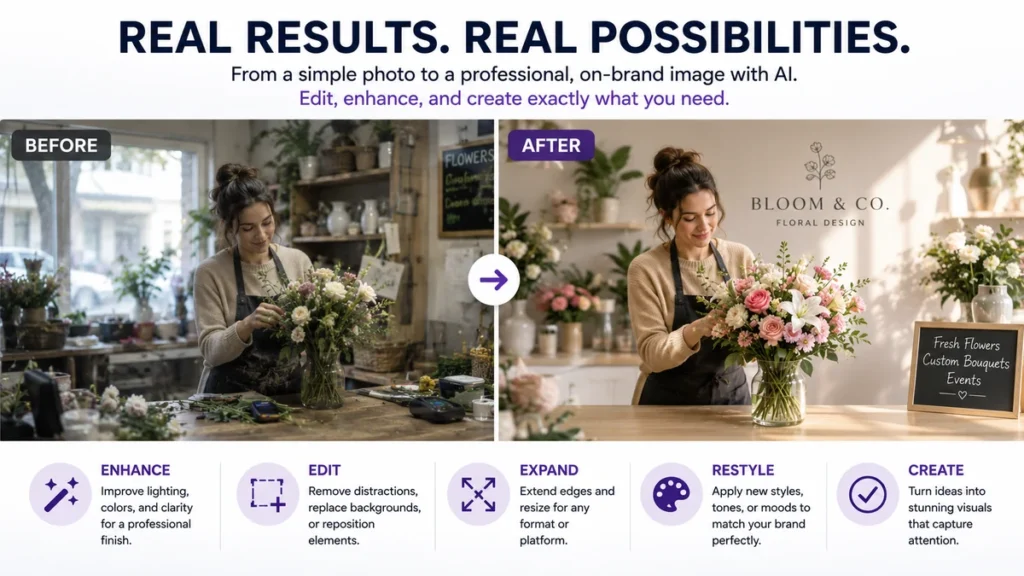
Both products support conversational image editing, but the best experience depends on the edit. ChatGPT allows a user to select part of an image when a targeted change is needed, or simply describe a broader edit in the conversation. That can make it easier to communicate exactly where a change should happen.
Gemini supports uploading and editing images through chat. Google’s recent image-editing work emphasises maintaining consistency, changing outfits or backgrounds, blending visual ideas and transferring styles. These capabilities are useful for exploratory creative work, but beginners should still compare the edited result carefully with the source.
Editing Rule: Make one meaningful change at a time. “Replace the background with a bright modern office, but keep the person, pose and clothing unchanged” is easier to evaluate than requesting five unrelated changes together.
Which Is Better for Text Inside Images?
Both companies now place strong emphasis on readable text, posters, diagrams and infographic-style visuals. That is a major improvement over older AI image tools, but neither should be treated like a guaranteed typesetting system.
If spelling, prices, dates, legal wording or brand claims matter, proofread every character. For important business graphics, generate the visual concept with AI and consider adding the final text in Canva, Adobe Express or another design tool where you can control the wording precisely.
Which Is Better for Small-Business Work?
| Task | Likely easier starting point | Why |
|---|---|---|
| Brainstorming several visual directions | Either | Both support conversational variation and refinement. |
| Precise multi-step editing | ChatGPT Images | Selection plus conversational context can make targeted changes easier to explain. |
| Fast template-led experimentation | Google Gemini | The Images area can provide visible starting formats. |
| Infographic or text-heavy concept | Test both | Both emphasise improved text, but accuracy must be checked. |
| Working alongside Google services | Google Gemini | It may fit an existing Google-centred workflow more naturally. |
| Guided creative back-and-forth | ChatGPT Images | The conversational workflow is especially useful for iterative direction. |
What About Free Access, Limits and Commercial Use?
Access, speed, image limits, model availability and advanced controls can differ by account, country, product and subscription. These details change too quickly to use as the sole reason for choosing a tool. Check the current plan screen before committing to a workflow that depends on a particular allowance.
Commercial use also requires care. Review the provider’s current terms, the source material you uploaded and any rights attached to logos, people, products or reference images. An AI tool generating an image does not automatically remove copyright, trademark, privacy or advertising responsibilities.
So, Which Is Easier for Beginners?
For most complete beginners, ChatGPT Images has a slight edge when the priority is a guided conversation, repeated refinement and targeted editing. It is easy to explain what worked, what did not and what should remain unchanged.
Google Gemini may be the easier choice for someone already comfortable with Google products, someone who prefers a template-led starting point or someone who wants a fast second opinion on a visual idea.
The practical answer is not to choose permanently after reading a feature list. Run the same small task in both tools and compare how many corrections each requires. The easier tool is the one that helps you reach a reliable result with less confusion and less rework.
A 20-Minute Beginner Comparison Test
- Choose one simple image you genuinely need.
- Use the same core prompt in ChatGPT and Gemini.
- Give each tool one composition correction and one style correction.
- Check text, hands, faces, logos and small details at full size.
- Record which tool needed fewer explanations and produced the more usable result.
- Repeat the test later with an editing task before settling on your main tool.
Key Takeaways
- Both ChatGPT Images and Google Gemini are accessible to complete beginners.
- ChatGPT has a slight advantage for guided iteration and targeted conversational editing.
- Gemini is a strong option for fast experimentation and Google-centred workflows.
- Readable text has improved, but every important word still needs proofreading.
- Plan limits, interfaces and model names change; test the current product rather than relying on an old comparison.
- The best beginner tool is the one that reaches a usable result with the least rework.
Frequently Asked Questions
Do I need to learn complicated AI image prompts?
No. Begin with the purpose, subject, format and style in ordinary language. Add detail only when it helps the tool make a better decision.
Can both tools edit a photo I upload?
Both currently support uploaded-image editing in their image experiences. Availability and specific controls can depend on the account and interface being used.
Which tool is better for logos?
Neither should replace professional identity design or trademark checks. They can help explore directions, but final logos need originality, scalability and legal review.
Can I trust text generated inside an image?
No. Treat it as a draft and proofread every character. Add critical final wording in a conventional design tool when accuracy matters.
Should I pay for both tools?
Not initially. Test the access available to you, choose one real task and upgrade only when a paid feature or higher allowance solves a demonstrated need.
Which one produces better images?
Quality varies by prompt, subject and edit. A controlled side-by-side test using your own task is more useful than a permanent winner declared from a single example.
Choose Your AI Image Starting Point
Explore K44’s carefully selected AI image tools, then run one controlled comparison using a visual you genuinely need. Keep the prompt simple, make one correction at a time and choose the workflow that feels easiest to repeat.